Upon opening a new grocery supermarket, many store owners only learn basic barcode scanning and payment collection, remaining unfamiliar with core management features: how to create product archives, how to process inbound inventory batches, how to audit stock levels, and how to execute shift handoffs and customer refunds. After several months, inventory records devolve into chaotic confusion.
Supermarket POS operations fall into two coordinated domains: backend inventory management and front-counter cashiering. Establishing robust backend master data is the prerequisite for smooth front-counter operations.
Note that software menu labels and shortcut keys vary across POS software vendors; this guide outlines universal operational workflows. Consult your vendor documentation for exact button locations.
Phase 1: Backend System Management
Step 1: Establish Product Category Hierarchies
Before entering individual SKUs, structure category trees. Supermarkets stock thousands of SKUs; clean categorization simplifies search, sales analytics, and periodic inventory counts.
Adopt a two-tier structure: Broad Categories (Food, Beverages, Household Goods) subdivided into Secondary Categories (Snacks, Dairy, Cleaning Supplies). Once categories are defined and saved, new products are assigned to their appropriate category.
Balance category granularity: overly complex categories create maintenance friction, while overly broad categories obscure sales insights.
Step 2: Archiving Product Master Data
With categories established, enter SKU profiles into the system. For each product, record: barcode, item name, retail price, wholesale cost, category, inventory unit (pcs, kg, bottle), initial stock, and low-stock replenishment alert thresholds.
For small catalogs, enter SKUs individually; for large inventories with thousands of SKUs, populate standard Excel batch import templates to upload entire catalogs in minutes.
Step 3: Inbound Invoicing and Stock Ingestion
Whenever supplier deliveries arrive, create an Inbound Purchase Order in the POS backend. Scan incoming product barcodes, input received quantities and purchase costs, and commit the order to update database inventory counts automatically.
Prompt stock ingestion is essential: selling merchandise before recording inbound invoices triggers negative inventory counts, scrambling accounting records.
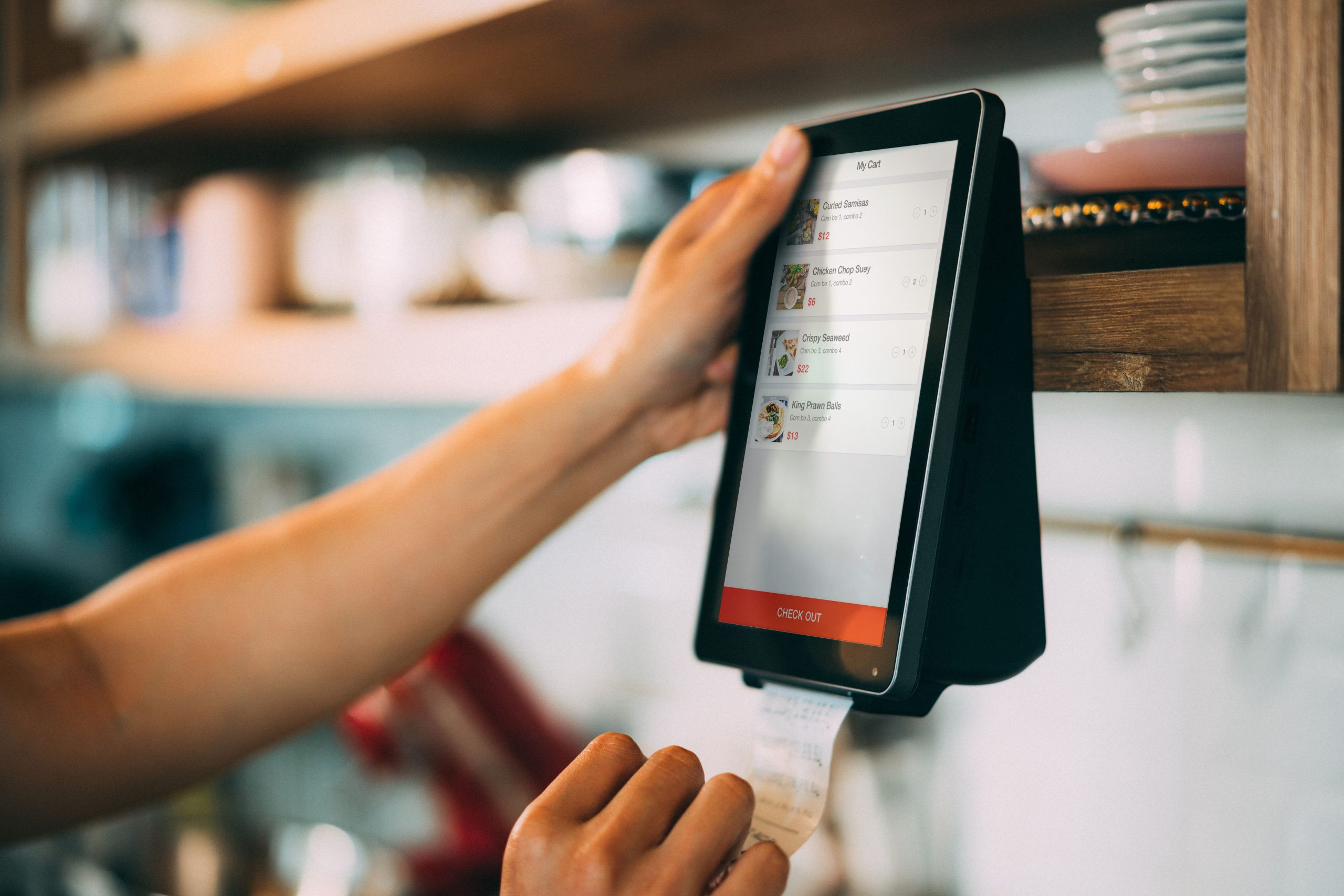
Step 4: Managing In-Store Promotions and Discount Rules
Configure promotional pricing (member discounts, holiday markdowns, buy-two-get-one deals) within the software backend in advance, specifying active start and end dates. Automated promotional rules eliminate manual cashier overrides at the register, preventing calculation errors and inventory drift.
Phase 2: Front-Counter Cashier Operations
Step 1: Cashier Sign-In (Shift Login)
At shift start, the cashier inputs their assigned operator ID and password to access the register. The system logs shift opening timestamps and cashier identity for accountability.
Step 2: Scanning Merchandise Barcodes
Scan item barcodes with the scanning gun or hands-free scanner; the system displays product names, unit prices, and running subtotal counts.
For multiple identical items, use the Quantity shortcut (e.g., input ‘5’, press QTY key, scan barcode) to accelerate throughput.
Step 3: Processing Payment Tenders
Once all items are scanned, press Total/Tender to select payment method:
Cash: Input tendered currency amount; system computes change due and triggers the cash drawer.
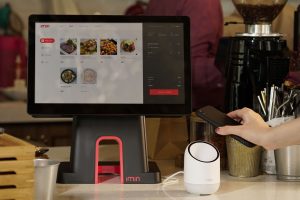
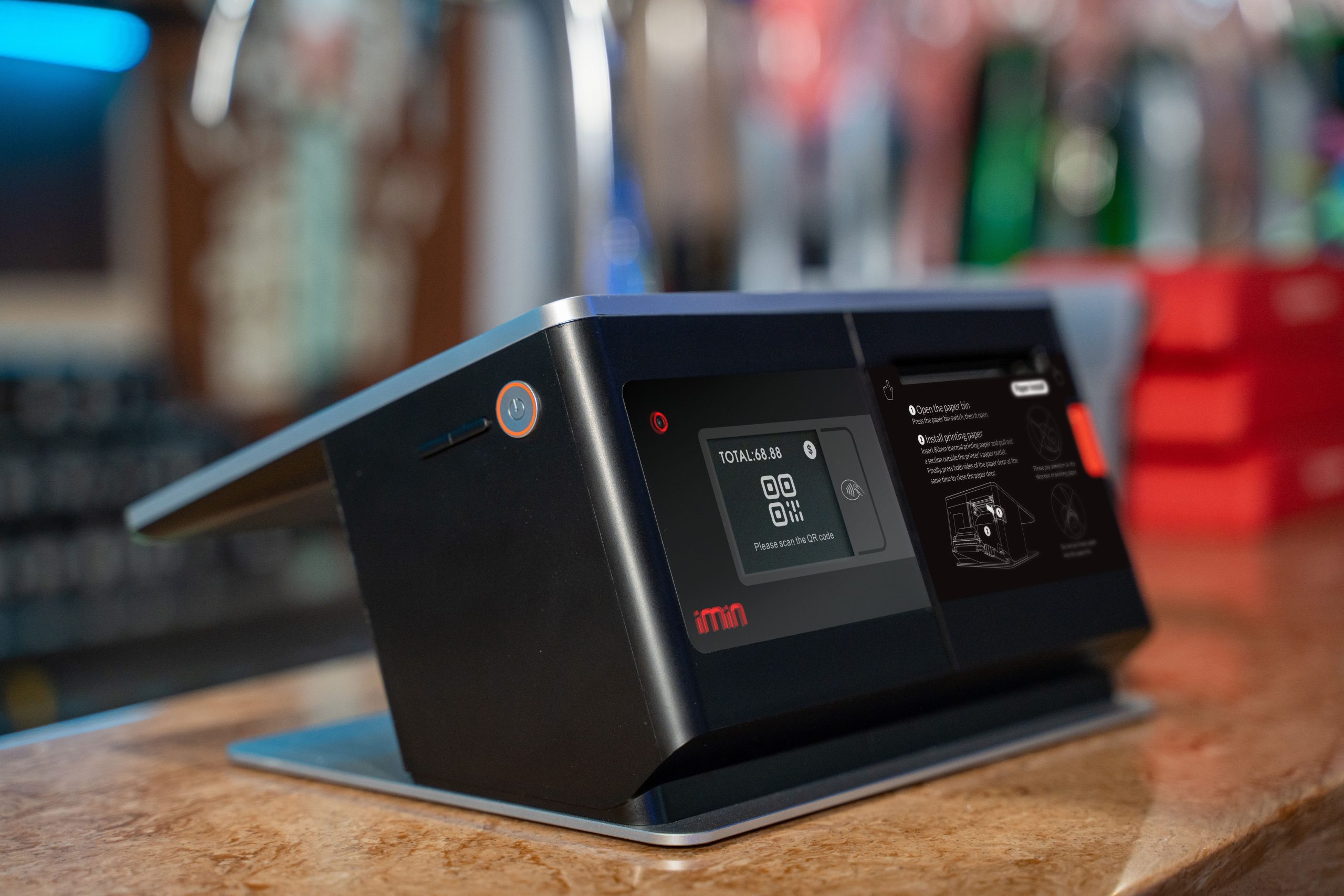
Digital QR (Alipay/WeChat Pay): Scan customer mobile payment code using the scanner gun; system processes payment automatically.
Bank Card: Swiped or tapped on connected payment terminals.
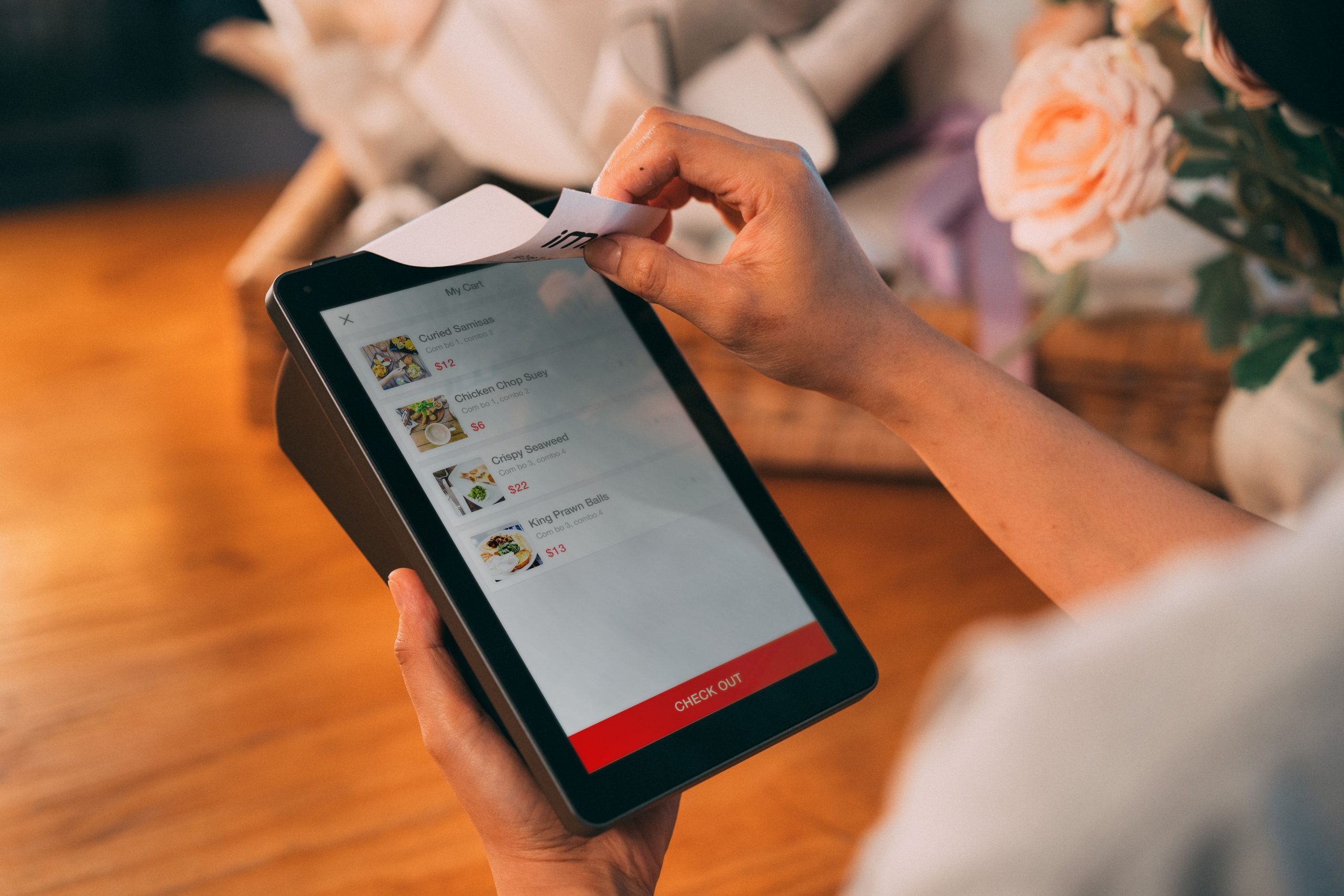
The receipt printer dispenses the customer receipt upon payment authorization.
Step 4: Processing Line Voids and Customer Refunds
Line Void During Scanning: If a customer decides against an item before paying, select the line item and execute Void Item. Systems typically require manager authorization to prevent unauthorized cancellations.
Post-Sale Returns: Inspect original customer receipt, scan the receipt transaction barcode in the POS return menu, scan returned items, verify condition, and process refund to original payment channels. The system automatically restocks inventory.
Step 5: Shift Handoff and Daily Reconciliation
At shift end, execute Shift Closure. The printer prints a shift audit report documenting total sales revenue, payment breakdowns (cash, card, QR), and return totals. Cashiers count drawer cash, match physical funds against report totals, record notes in the shift log, and hand over the register.
Essential POS Hardware Components Checklist
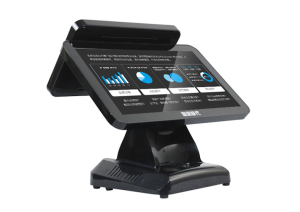
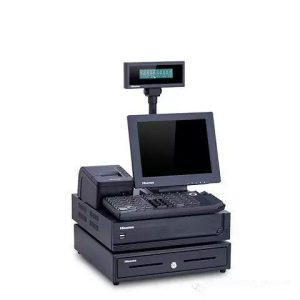
A standard supermarket checkout lane requires: POS Compute Host (running database software); Cashier Touchscreen Monitor (displaying interface); Barcode Scanner Gun or Hands-Free Countertop Scanner (reading barcodes); POS Matrix Keyboard (accelerating shortcuts); Customer-Facing Display (showing totals and QR codes); High-Speed Thermal Receipt Printer (printing chits); and Electronic Cash Drawer with RJ11 Trigger (securing currency). Fresh grocery sections require integrated digital price computing scales.
Frequently Asked Questions (FAQ)
What if an item barcode cannot be scanned? Clean the barcode surface and scanner window. If unreadable, manually key in the numeric barcode digits printed below the stripes. If damaged, set aside and process via manager SKU lookup.
How do supermarkets handle bulk produce lacking barcodes? Weigh items on an electronic barcode scale to print price-embedded barcode labels, or enter assigned PLU shortcut codes directly on the POS register.
Can cashiers authorize customer refunds independently? Most supermarkets restrict refund permissions to store managers via override credentials to maintain financial oversight.
What should be done if physical cash mismatches shift reports? Recount drawer funds carefully. If discrepancies persist, audit cash transactions against receipts and report discrepancies in shift handoff logs for administrative review.
Conclusion
Operating a supermarket POS system requires harmonizing backend inventory archiving with front-counter cashier workflows. Establishing clean categories, recording accurate inbound stock, training cashiers on shortcuts, and executing daily shift reconciliations ensures an orderly, profitable retail business.
Explore Related Self-Service Kiosks & POS Checkout Terminals
If you are upgrading your retail checkout counter, restaurant ordering flow, or commercial payment terminals, consider our proven hardware solutions:
- All-in-One Telecom Self-Service Payment Terminal for Bill Payment & Top-Up
- Multi-Function Self-Service Payment & Banking Kiosk with Biometric Authentication
- Hospital Patient Self-Service Registration & Ticket Dispensing Kiosk
- 15-Inch Windows Compact Desktop Touch Display for POS & Self-Service Terminals
Need a Custom POS Terminal or Self-Service Kiosk Project Quote?
ZXTLCD provides comprehensive OEM/ODM manufacturing for self-service ordering kiosks, cash registers, touch displays, payment peripherals, barcode scanners, and thermal printer integration.
Deploying a Self-Service Solution?
To elevate customer experience and streamline ordering or ticketing workflows, explore our AI Self Service Terminal with Large Touchscreen or the versatile Self Service Kiosk for Cinema & Ticketing. For custom hardware integrations, discover our complete line of Custom Self-Service Kiosks or consult our engineering team for sample evaluation.