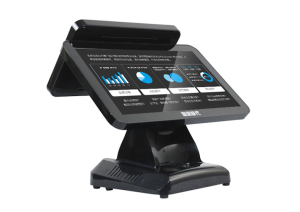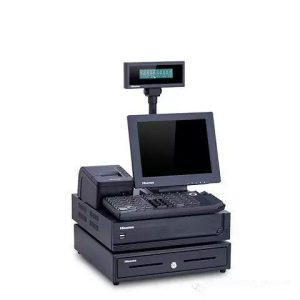
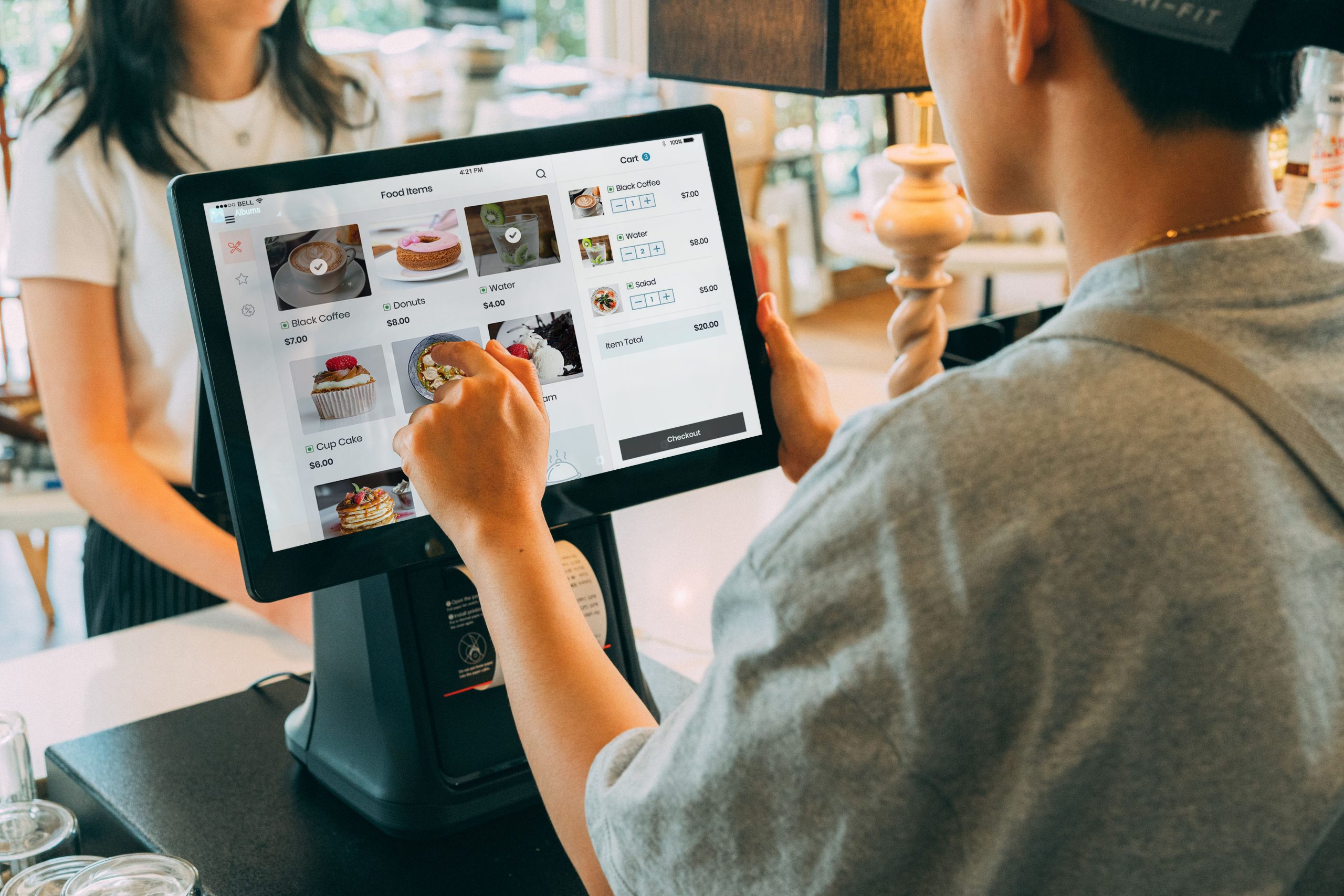
Unboxing and powering on a new all-in-one POS terminal is straightforward. Yet for the exact same hardware model, some retail stores operate with effortless efficiency—breezing through peak rushes without missing a beat—while other stores constantly struggle: prices ring up incorrectly, inventory numbers desynchronize, and closing reconciliation takes hours.
The difference rarely lies in hardware quality; it stems from whether initial pre-opening configuration was executed properly and whether staff cultivate disciplined daily operating habits. Below is a structured operational guide detailing pre-opening setup, peak-hour cashiering techniques, and routine preventive care.
Phase 1: Pre-Opening System Configuration — Precision Over Speed
Foundational Master Settings: Configure system language, date, exact network time, store name, and receipt header/footer details. Accurate system time is vital; misaligned clocks corrupt daily sales auditing and tax records, while complete receipt headers make customer order tracking seamless.
Merchandise Database Archiving: This is the most labor-intensive and critical step. Product names, barcodes, retail prices, cost prices, categories, and inventory units must be entered with meticulous accuracy. Standardize naming conventions strictly across all SKUs, and utilize batch Excel import templates for large catalogs. After importing, conduct spot-check scans with real merchandise to verify that prices and names populate accurately.
Pre-Configuring Promotional Discount Rules: Program automated promotion rules (tiered volume discounts, member specials, buy-one-get-one bundles) into the software backend in advance. Never rely on cashiers manually calculating discounts at the register during transactions, which inevitably breeds calculation errors and inventory drift.
Staff User Accounts and Permissions: Establish distinct accounts for cashiers and managers. Limit cashiers strictly to checkout and scanning functions, reserving sensitive permissions (price overrides, line voids, transaction cancellations, and profit reports) to manager credentials to prevent errors and fraud.
Peripheral Connectivity and Receipt Layout: Print test receipts to verify print darkness, paper alignment, auto-cutter operation, and receipt header text. Verify that the cash drawer kicks open cleanly upon cash tender, that scanning guns read barcodes instantly from various angles, and that customer-facing displays mirror data accurately.
Phase 2: Peak-Hour Cashiering Techniques — Accelerating Throughput
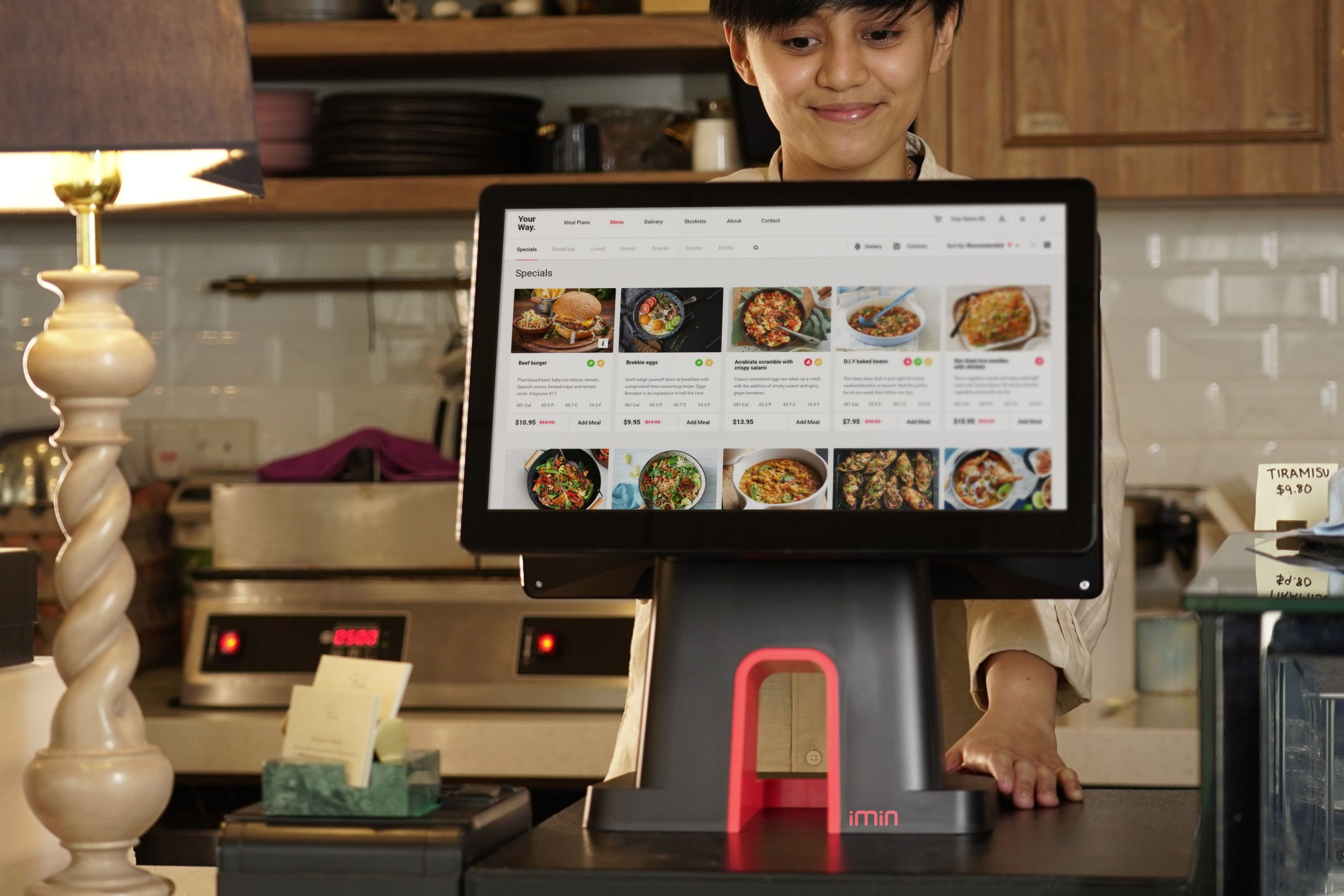
Standardize Pre-Shift Preparation: Before opening doors, cashiers must verify receipt paper rolls (keeping spare rolls adjacent), stock cash drawers with adequate change denominations, and execute mock scans to confirm network connectivity.
Master POS Keyboard and Touch Shortcuts: Train cashiers thoroughly on the Quantity shortcut (typing item count before scanning identical bulk items) and Repeat Previous shortcuts to dramatically accelerate scanning during heavy rushes.
Adopt a Two-Handed Scanning Rhythm: Train cashiers to pick up items with one hand, pass the barcode across the scanner window in a smooth motion, and pack with the opposite hand, maintaining continuous flow rather than picking and setting down items hesitantly.
Handling Barcode Read Errors: When damaged or unreadable barcodes occur, train cashiers to immediately set the item aside to continue scanning the rest of the order, looking up the SKU via search or manager override at the end to prevent holding up the entire queue.
Verify Tender Amounts Explicitly: When handling cash, verbally announce the amount received (‘Out of $50’) and enter it into the system before retrieving change, announcing the returned change clearly (‘Your change is $12’). This eliminates customer disputes regarding tendered denominations.
Phase 3: Daily Shift Closures and Preventive Maintenance
Standardize Shift Handoff Audits: At shift end, generate the cashier shift report. Count physical cash in the drawer and match it against system figures, recording notes in the shift log before handing over the register to the next cashier.
Daily Data Backup: If utilizing local desktop software, execute daily database backups to an external USB drive or secondary storage. Cloud POS systems execute automatic sync, but verify that all offline transactions have uploaded before powering down.
Disciplined Optical Cleaning: Power down the terminal before wiping touchscreens with a soft microfiber cloth; never spray liquid glass cleaners directly onto screen bezels. Clean barcode scanner glass windows with optical wipes to maintain rapid scanning reads.
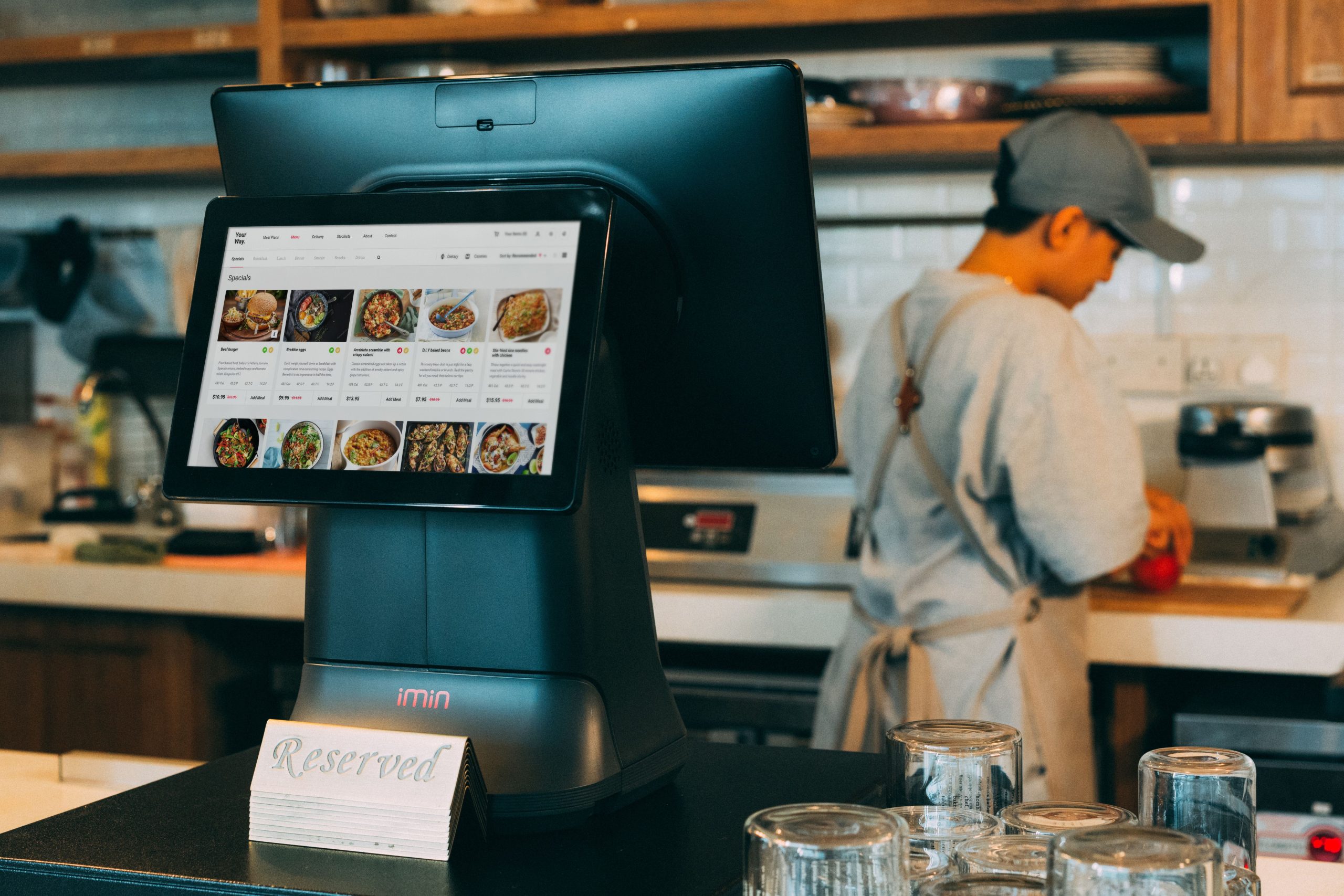
Printer Thermal Head Care: Inspect printer paper compartments for dust accumulation and paper lint; wipe thermal print heads periodically with isopropyl alcohol swabs to prevent faded printing.
Cash Drawer Inspection: Clear coins and foreign objects from behind the cash drawer tray, and lubricate drawer roller rails periodically to ensure smooth ejection.
Frequently Asked Questions (FAQ)
What causes thermal receipt printers to skip lines or print faintly? Common causes include low thermal paper quality, paper loaded backwards, dust on the thermal print head, or incorrect print darkness settings. Cleaning the thermal head and verifying paper orientation usually resolves the issue.
How can stores maintain checkout speed during sudden internet outages? Ensure your POS software supports offline mode, allowing cashiers to scan and store transactions locally, with automatic cloud synchronization once connectivity restores.
Should all-in-one POS terminals be powered down every night? Yes. Powering down after store hours conserves power, dissipates internal heat, and clears temporary system memory cache, extending hardware longevity.
How often should retail product databases be audited? Spot-check prices weekly, update promotional pricing as campaigns rotate, and execute structured physical inventory cycle counts monthly.
Conclusion
Operating an all-in-one POS terminal smoothly is a discipline of structured preparation: meticulous pre-opening configuration, ergonomic peak-hour scanning techniques, and consistent daily maintenance. Mastering these operational practices transforms your POS system into a reliable engine of store productivity and customer satisfaction.
Explore Related Self-Service Kiosks & POS Checkout Terminals
If you are upgrading your retail checkout counter, restaurant ordering flow, or commercial payment terminals, consider our proven hardware solutions:
- All-in-One Telecom Self-Service Payment Terminal for Bill Payment & Top-Up
- Multi-Function Self-Service Payment & Banking Kiosk with Biometric Authentication
- Hospital Patient Self-Service Registration & Ticket Dispensing Kiosk
- 15-Inch Windows Compact Desktop Touch Display for POS & Self-Service Terminals
Need a Custom POS Terminal or Self-Service Kiosk Project Quote?
ZXTLCD provides comprehensive OEM/ODM manufacturing for self-service ordering kiosks, cash registers, touch displays, payment peripherals, barcode scanners, and thermal printer integration.
Deploying a Self-Service Solution?
To elevate customer experience and streamline ordering or ticketing workflows, explore our AI Self Service Terminal with Large Touchscreen or the versatile Self Service Kiosk for Cinema & Ticketing. For custom hardware integrations, discover our complete line of Custom Self-Service Kiosks or consult our engineering team for sample evaluation.