Buffet Restaurant Self-Ordering Kiosk: Approaching the Self-Ordering Kiosk
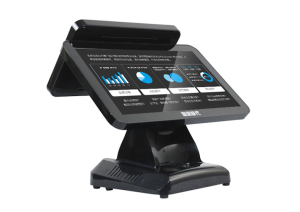
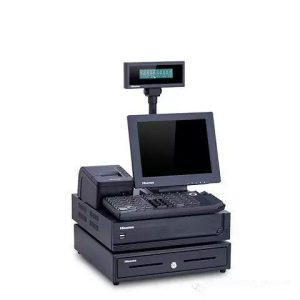
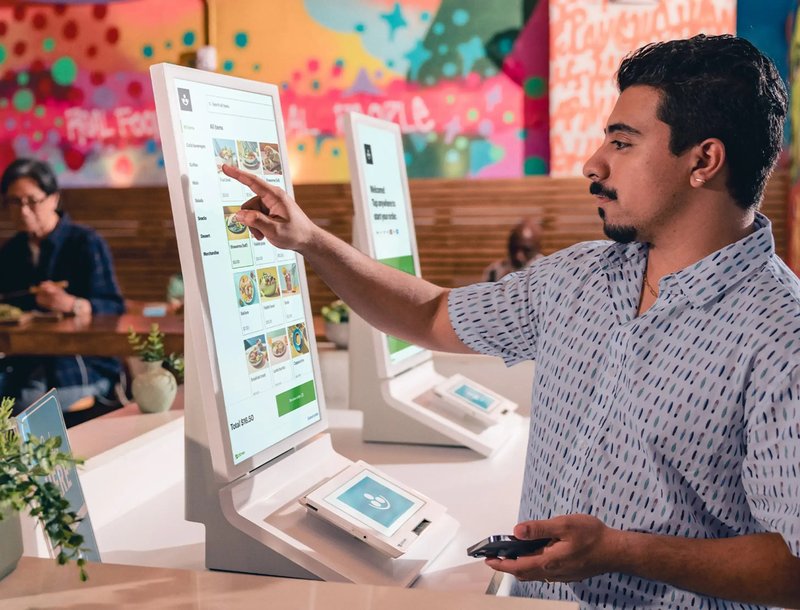
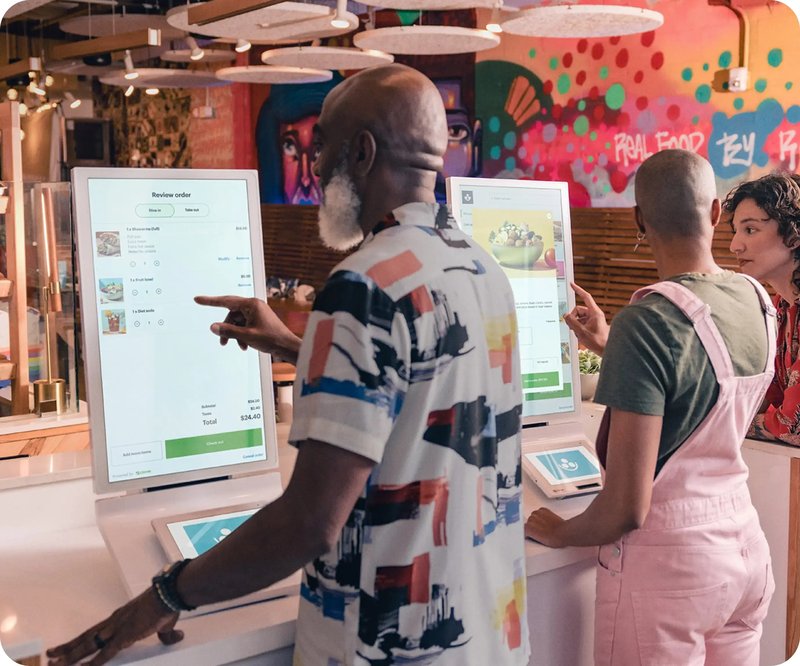
Deploying a high-performance Buffet Restaurant Self-Ordering Kiosk provides commercial dining and retail venues with an advanced automated workflow. In contemporary buffet and self-service restaurants, self-ordering kiosks have become an essential piece of interactive equipment. They are typically positioned in prominent, easily accessible locations such as the main entrance, lobby center, or adjacent to dining zones. A self-ordering kiosk generally consists of an interactive commercial terminal with a vibrant large touchscreen displaying the restaurant’s branding, logo, and an intuitive user interface. Small conveniences such as napkins and pens may also be provided nearby for customer ease.
Step 1: Selecting a Table
Upon entering the restaurant, the customer’s first step is selecting a seat. Many modern restaurant kiosks feature dynamic table-mapping functions, allowing guests to view a digital floor plan displaying real-time seating distribution and occupancy status. By tapping an available table icon, guests can reserve or register their seat. This visual seat assignment automatically notifies restaurant floor staff in real time, ensuring smooth coordination for subsequent service.
Step 2: Browsing the Menu
Once a table is chosen, the guest begins the ordering process. Tapping the prominent “Menu” icon on the home screen reveals the full culinary selection. Menus are neatly organized into intuitive categories such as appetizers, hot dishes, desserts, and beverages. Each dish listing showcases high-definition imagery, item names, pricing, and brief descriptions, allowing diners to explore ingredients and signature highlights. Guests can swipe up and down smoothly on the touchscreen to browse dishes at their own pace.
Step 3: Selecting Dishes
While exploring the menu, diners simply tap the “+” button beside their desired dishes to add them to the digital shopping cart. Tapping the “-” button removes an item. Many kiosks also support dish customization, allowing guests to adjust flavor profiles, spice levels, or cooking preferences. For specialty items, the kiosk displays relevant notices, such as premium surcharge details or estimated preparation wait times.
Step 4: Confirming the Order
After selecting items, tapping the shopping cart icon opens the order review screen. Here, customers can review their full list of selected dishes, quantities, and the total bill. Guests can verify their order details and tap “Confirm Order.” If any adjustments are needed, items, quantities, and cooking preferences can be edited directly on this cart screen.
Step 5: Payment and Checkout
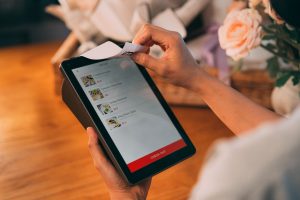
After confirming the order, the kiosk proceeds to the payment interface. Kiosks accommodate multiple payment methods, including digital mobile wallets (WeChat Pay, Alipay, Apple Pay), bank cards (credit/debit cards), and membership cards. The customer selects their preferred payment method and follows the clear on-screen prompts. Upon successful transaction processing, the kiosk’s internal thermal printer automatically issues a receipt containing the order number, table number, itemized dish list, and payment summary. Customers should retain this receipt to present to restaurant staff if required.
Frequently Asked Questions (FAQ)
Q: What should I do if I accidentally select the wrong dish during ordering?
A: You can tap the “-” button directly on the shopping cart page to remove unwanted items or modify item quantities and flavor options before final checkout.
Q: How can I check my complete order details?
A: You can review your selected items, quantities, and total amount on the shopping cart page before confirming. After successful payment, the printed receipt also provides a complete, itemized breakdown.
Q: Can I pay with cash at the kiosk?
A: Certain kiosks feature integrated cash and coin acceptors. However, most contemporary dining establishments encourage electronic payments (mobile wallets, contactless bank cards, or NFC) to maximize throughput and transaction speed.
Q: What should I do if the self-ordering kiosk malfunctions?
A: Notify restaurant staff immediately. Team members can promptly troubleshoot the terminal, restart the machine, or assist you at the service counter.
Q: Can multiple people use a single kiosk at the same time?
A: It is generally recommended that one person operates the kiosk to prevent ordering confusion. However, families or dining groups can easily collaborate and take turns selecting dishes together on the large display.
Q: Can I modify dishes after placing an order?
A: If the kitchen has not yet begun preparing the dishes, modifications can typically be arranged through the kiosk or by contacting floor staff with your order receipt.
Q: How do I know when my dishes are ready?
A: Many restaurants display real-time order preparation status on kitchen display monitors or kiosk notification screens, while other venues dispatch servers directly to your table based on your printed receipt number. In summary, integrating a reliable Buffet Restaurant Self-Ordering Kiosk solution reduces operational labor costs, shortens customer wait times, and maximizes store throughput.
Looking for customized Buffet Restaurant Self-Ordering Kiosk hardware, commercial touchscreen displays, or OEM/ODM self-service solutions? Feel free to contact the ZXTLCD engineering team for free consultations, product specifications, and tailored volume pricing.
Deploying a Self-Service Solution?
To elevate customer experience and streamline ordering or ticketing workflows, explore our AI Self Service Terminal with Large Touchscreen or the versatile Self Service Kiosk for Cinema & Ticketing. For custom hardware integrations, discover our complete line of Custom Self-Service Kiosks or consult our engineering team for sample evaluation.