Deploying a high-performance Buffet Kiosk User Experience provides commercial dining and retail venues with an advanced automated workflow. Buffet and all-you-can-eat restaurants are widely celebrated for their convenience and culinary variety. As an indispensable component of contemporary restaurant technology, self-ordering kiosks have greatly elevated the dining experience. For many guests, understanding how to use these automated ordering terminals efficiently and correctly ensures an effortless visit. This comprehensive guide walks you through the step-by-step operation of buffet self-ordering kiosks, along with practical tips to enhance your dining experience.
Buffet Kiosk User Experience: 1. Basic Structure and Functions of Self-Ordering Kiosks
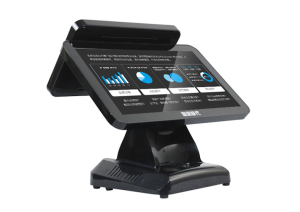
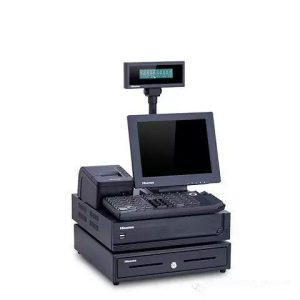
Before operating the machine, understanding its fundamental hardware components and software layout is essential. A commercial self-ordering kiosk typically integrates the following elements:
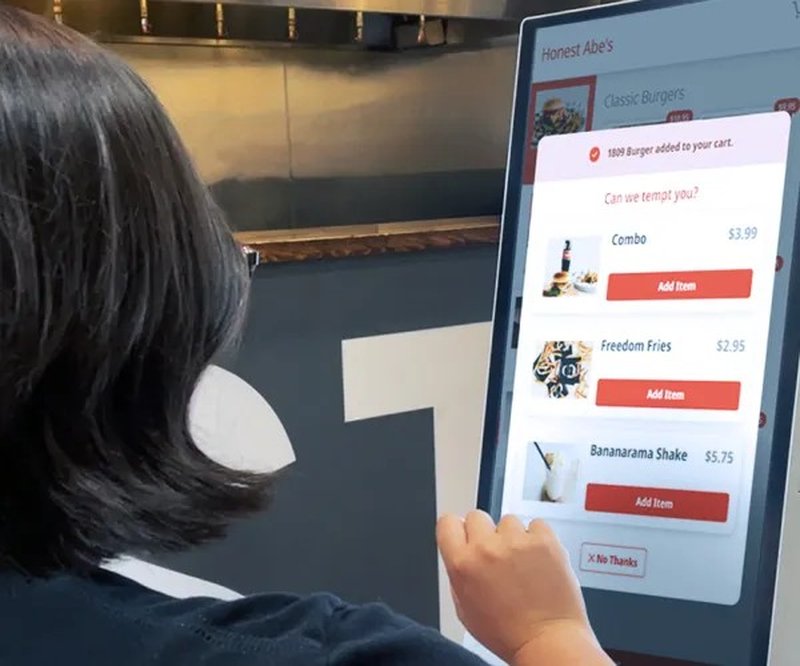
1. Interactive Touchscreen Display: Used for system navigation, menu browsing, and order input.
2. Menu Categories: Organized logically by course (such as appetizers, mains, barbecue, seafood, desserts, beverages) to facilitate rapid dish discovery.
3. Digital Shopping Cart: Allows guests to accumulate selected items, inspect order quantities, and review prices before checkout.
4. Multi-Option Payment Gateway: Accommodates diverse payment channels, including mobile digital wallets (Alipay, WeChat Pay, Apple Pay), credit/debit cards, and contactless NFC.
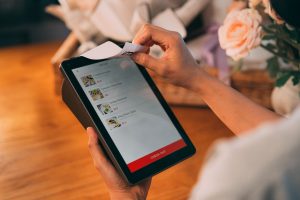
5. Receipt Printer: Automatically dispenses printed order vouchers displaying the designated table number, order sequence, and itemized dish selections.
Familiarity with these core functions ensures a seamless ordering journey.
2. Step-by-Step Guide to Operating a Self-Ordering Kiosk
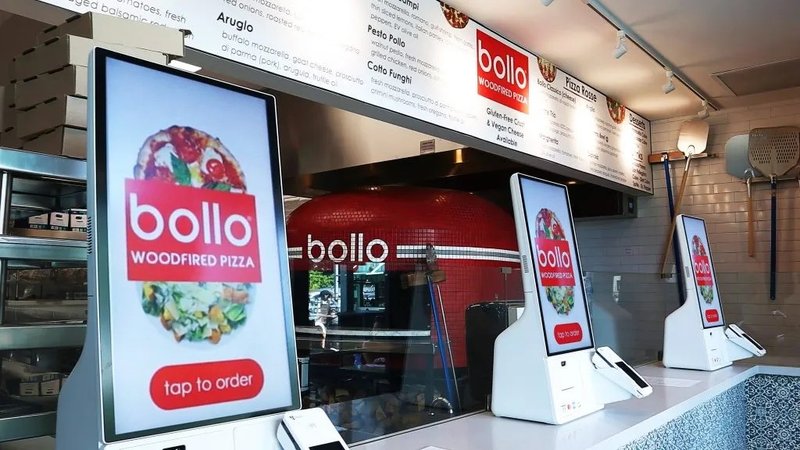
1. Wake the Screen: Approach the kiosk and lightly tap the display to activate the interface. The welcome screen typically displays language options and category menus.
2. Browse Categories: Tap different category tabs to explore culinary options. For instance, navigate between “Appetizers,” “Chef’s Specials,” “Hot Entrees,” or “Beverages” to view itemized menus.
3. Select Dishes: Browse dishes within each category. Each listing displays high-resolution photography, flavor descriptions, and ingredient notes. Tap your desired dish, specify quantities or cooking preferences, and add it to the shopping cart.
4. Review the Shopping Cart: Tap the cart icon to review selected items. You can adjust quantities, add special preparation requests, or delete items you no longer wish to order.
5. Confirm Your Order: Once satisfied with your selections, tap “Checkout” or “Submit Order” to proceed to the payment interface.
6. Select Payment Method: Choose your preferred payment option, scan your payment QR code or tap/insert your payment card, and confirm the transaction. The system will process the payment and generate your order.
7. Collect Order Voucher: Upon successful payment, the kiosk issues a printed receipt showing your assigned table number, transaction ID, and itemized selections. Keep this voucher handy for food pickup or service verification.
8. Dine and Collect Food: Locate your table or designated culinary pickup counter according to your printed ticket. Wait for kitchen staff to prepare your items, or collect ready-to-serve buffet items according to restaurant guidelines.
3. Practical Tips for Using Self-Ordering Kiosks
1. Preview the Menu in Advance: Check the restaurant’s menu via their website or social media channels prior to arrival to streamline your kiosk selections.
2. Utilize Dietary Filter Tools: Many advanced kiosks feature filtering tools for dietary preferences (such as “Vegetarian,” “Gluten-Free,” or “Spicy”) to instantly locate suitable choices.
3. Be Mindful of Portion Sizes: Check portion indicators or piece counts for each item to prevent over-ordering and minimize food waste.
4. Check Diner Ratings and Badges: If the kiosk highlights “Customer Favorites” or “Chef Recommendations,” leverage these insights to discover popular signature dishes.

5. Request Staff Assistance When Needed: If you encounter unfamiliar menu options or technical hiccups during ordering, floor staff are always available to assist.
4. Frequently Asked Questions (FAQ)
1. What payment methods are supported on self-ordering kiosks?
Self-ordering kiosks generally support digital mobile wallets (Alipay, WeChat Pay, Apple Pay, Google Wallet), credit and debit cards, contactless NFC, and in some setups, cash or membership balance deduction, depending on restaurant configurations.
2. Does the system notify me if an item is sold out?
Yes. When a dish runs out of stock, real-time inventory synchronization automatically marks the item as “Sold Out” or disables the add-to-cart button, allowing you to select an alternative.
3. Can I modify an order after confirming and paying?
Once payment is completed and the order is transmitted to the kitchen display system (KDS), orders typically cannot be altered directly on the kiosk. Always double-check your shopping cart before finalizing payment.
4. Is the kiosk touchscreen interface user-friendly?
Yes. Commercial kiosk user interfaces are designed with large touch targets, intuitive visual hierarchies, and clear icons to ensure effortless operation across all age demographics. Floor staff are also on hand if assistance is required.
5. Why did my kiosk payment transaction fail?
Payment failures typically stem from transient cellular/Wi-Fi network interruptions, expired digital payment tokens, or insufficient bank account funds. Try switching to an alternate payment method or refreshing your payment app.
6. Do self-ordering kiosks support multiple languages?
Many restaurant kiosks offer multilingual interfaces (such as English, Chinese, Japanese, and Spanish). Simply tap the language toggle icon in the upper corner of the home screen.
7. Can I view nutritional and allergen information on the kiosk?
Yes. Many modern kiosks display calorie counts, nutritional breakdowns, and allergen warnings (such as nuts, dairy, or shellfish) directly within the dish details page.
8. Is there a time limit when ordering on the kiosk?
Most restaurants do not impose strict ordering time limits, but completing orders efficiently is considerate during busy peak meal rushes.
9. Can I return or refund a dish if I am dissatisfied?
Buffet and dining establishments generally do not permit returns on prepared food unless a quality issue exists. Please review ingredients and flavor options carefully when ordering.
10. How can I manage my buffet dining budget on the kiosk?
Review the running order subtotal in your shopping cart before proceeding to payment to ensure selections align with your spending expectations.
11. Can buffet reservations be booked through the kiosk?
Certain restaurants integrate reservation and table-queuing check-ins directly into their lobby kiosks. However, making reservations online or by phone prior to arrival is recommended. In summary, integrating a reliable Buffet Kiosk User Experience solution reduces operational labor costs, shortens customer wait times, and maximizes store throughput.
Looking for customized Buffet Kiosk User Experience hardware, commercial touchscreen displays, or OEM/ODM self-service solutions? Feel free to contact the ZXTLCD engineering team for free consultations, product specifications, and tailored volume pricing.
Deploying a Self-Service Solution?
To elevate customer experience and streamline ordering or ticketing workflows, explore our AI Self Service Terminal with Large Touchscreen or the versatile Self Service Kiosk for Cinema & Ticketing. For custom hardware integrations, discover our complete line of Custom Self-Service Kiosks or consult our engineering team for sample evaluation.