A clear troubleshooting sequence helps staff separate simple operating issues from faults that require technical service.
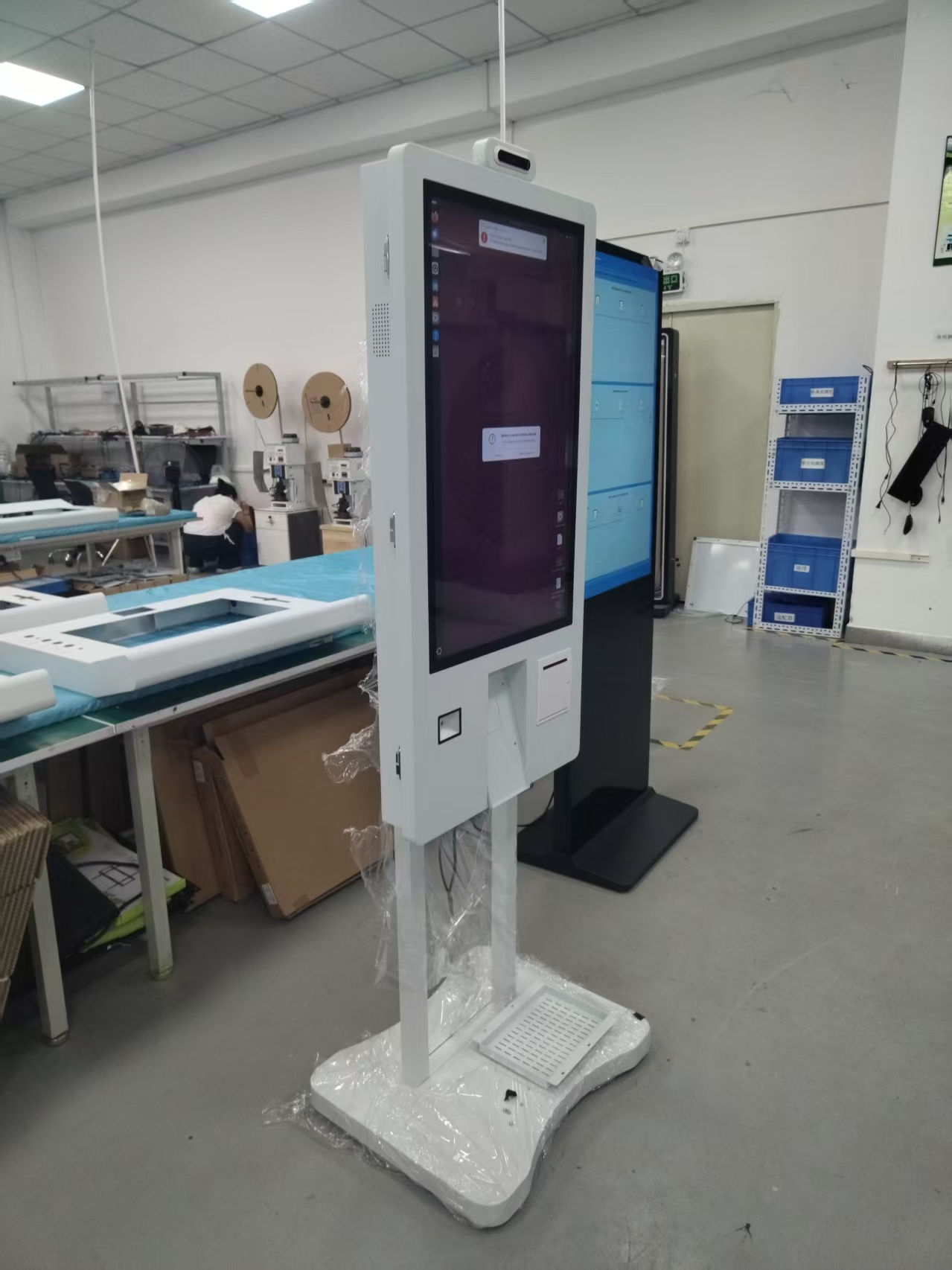
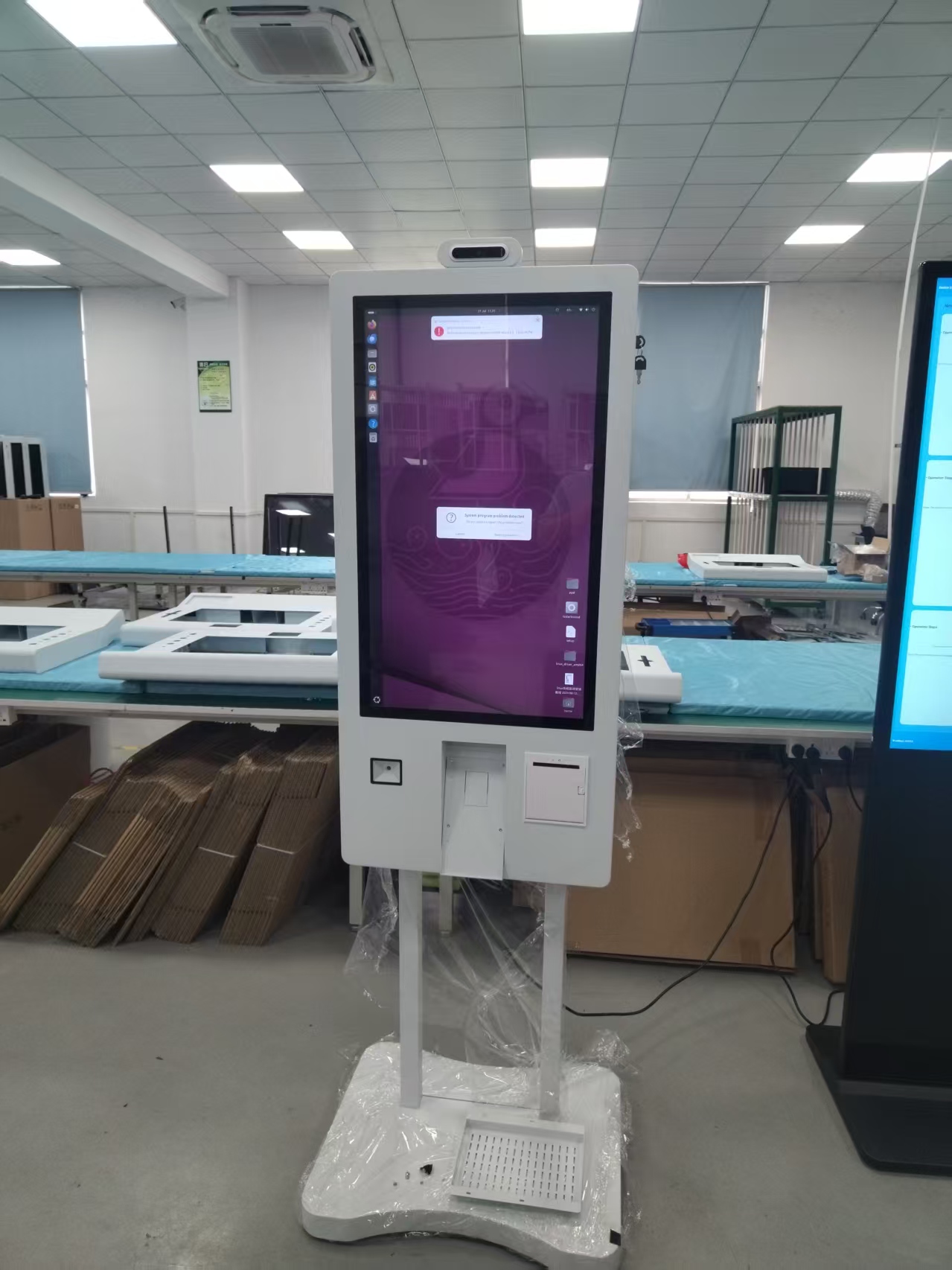
Touch-screen ordering kiosks in wireless ordering systems typically exhibit the following problems during use:
Does dust affect the touch screen in a wireless ordering system?
Dust in the monitor’s viewing area has no effect on the touch screen at all. However, if too much dust covers the reflective stripes around the edges of the touch screen, the screen will gradually lose its touch function. Simply cleaning the dust off the surrounding areas restores normal operation. You can slide a business card or bank card wrapped in a thin cloth through the gap between the cabinet frame and the touch screen to wipe away the dust.
Does the surface acoustic wave screen of a touch-screen kiosk in a wireless ordering system need frequent cleaning?
This depends on the environment in which the touch screen is used. If the touch screen is installed correctly, generally it only needs cleaning once a year.
Why is there sometimes a deviation between the touch point and the mouse arrow?
This phenomenon is what we often call mouse drift. It generally occurs with surface acoustic wave screens, caused by large accumulations of dust or scale on the acoustic-wave reflective stripes along the four edges, which interferes with the transmission of the acoustic signal. Wipe the edges clean using the method above; when cleaning, be sure to disconnect the power to the touch screen control card.
How do you clean the touch screen in a wireless ordering system?
Spray glass cleaner or alcohol onto a towel and wipe the glass surface with it. Under normal circumstances, you can simply wipe the dust off the glass surface with a dry towel. For a touch monitor, you can slide a business card or stiff paper through the gap between the monitor’s front cover and the touch screen to remove dust easily.
Under normal conditions, what is the status of the touch control box indicator light in a wireless ordering system?
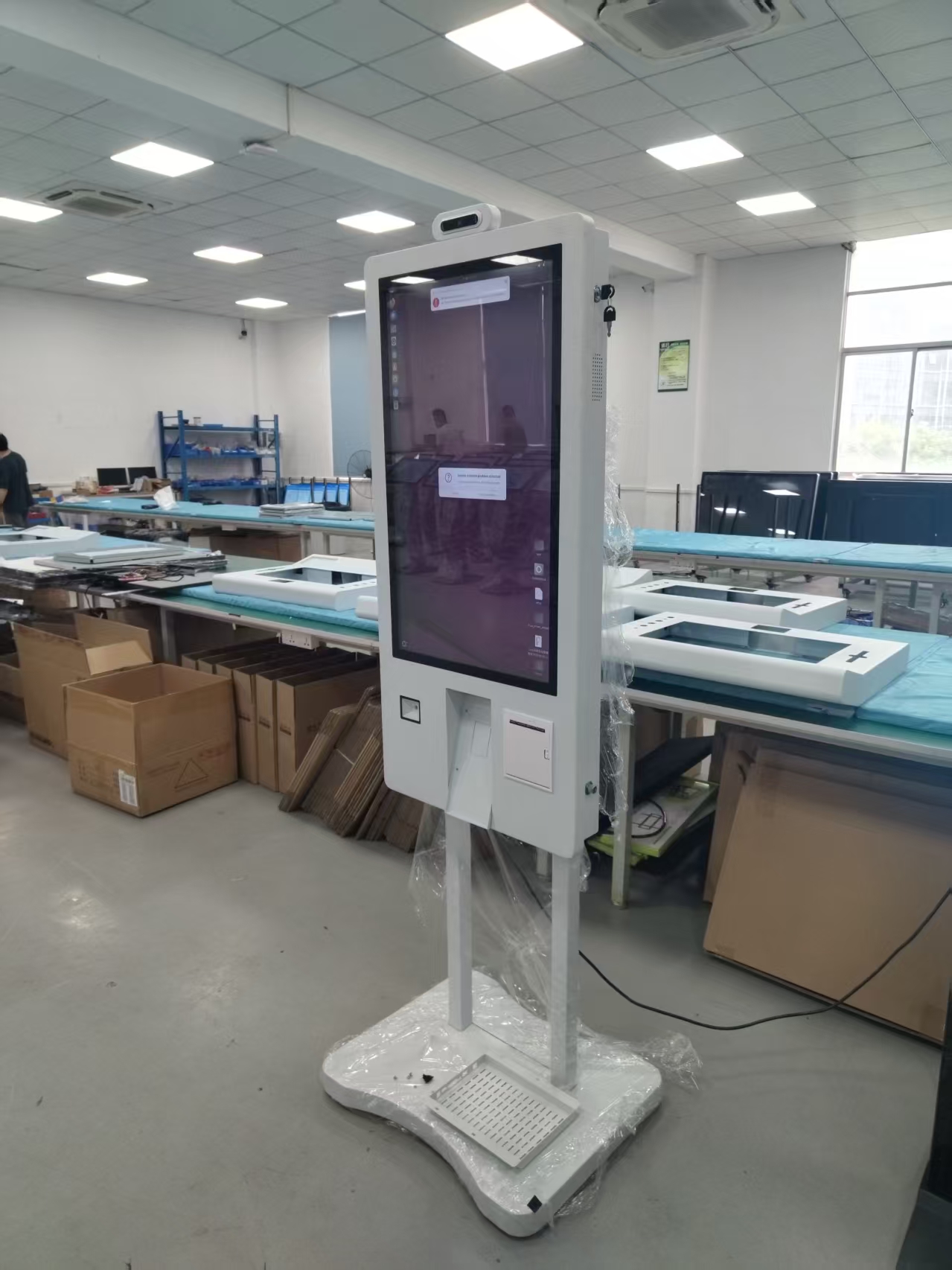
During normal operation, the light comes on two seconds after power-up, stays lit for three seconds, then goes off. After startup completes, it stays lit while being touched and goes off when not touched. If it shows any other status, check the hardware connections.
Why does the touch screen in a wireless ordering system sometimes respond very slowly?
There may be moving water droplets stuck on the touch screen – the screen is responding to the droplets. Wipe it with a dry, soft cloth.
Why does the touch mouse only move within a small area, or touch inaccurately?
This usually happens the first time the driver is installed. Run the touch screen calibration program. You must also run the calibration program after changing the monitor’s resolution.
Why does the mouse sometimes stay fixed at one point along the edge of the monitor?
This is mostly because the touch area is being pressed too tightly by the monitor housing or the cabinet shell, which is equivalent to that point being touched continuously. If the cabinet shell is pressing the touch area, you can slightly increase the distance between the cabinet and the monitor screen; if the monitor housing is pressing the touch area, you can try loosening the housing screws a little.
After connecting external power, the monitor lights up, but why won’t the main unit start after pressing the power reset switch on the back of the cabinet?
Check whether the power cord plug on the outlet inside the cabinet is inserted tightly. By the same token, if the main unit starts normally but the monitor displays nothing, just check the plug on the outlet.
Why does the touch screen in a wireless ordering system not respond at all to touch?
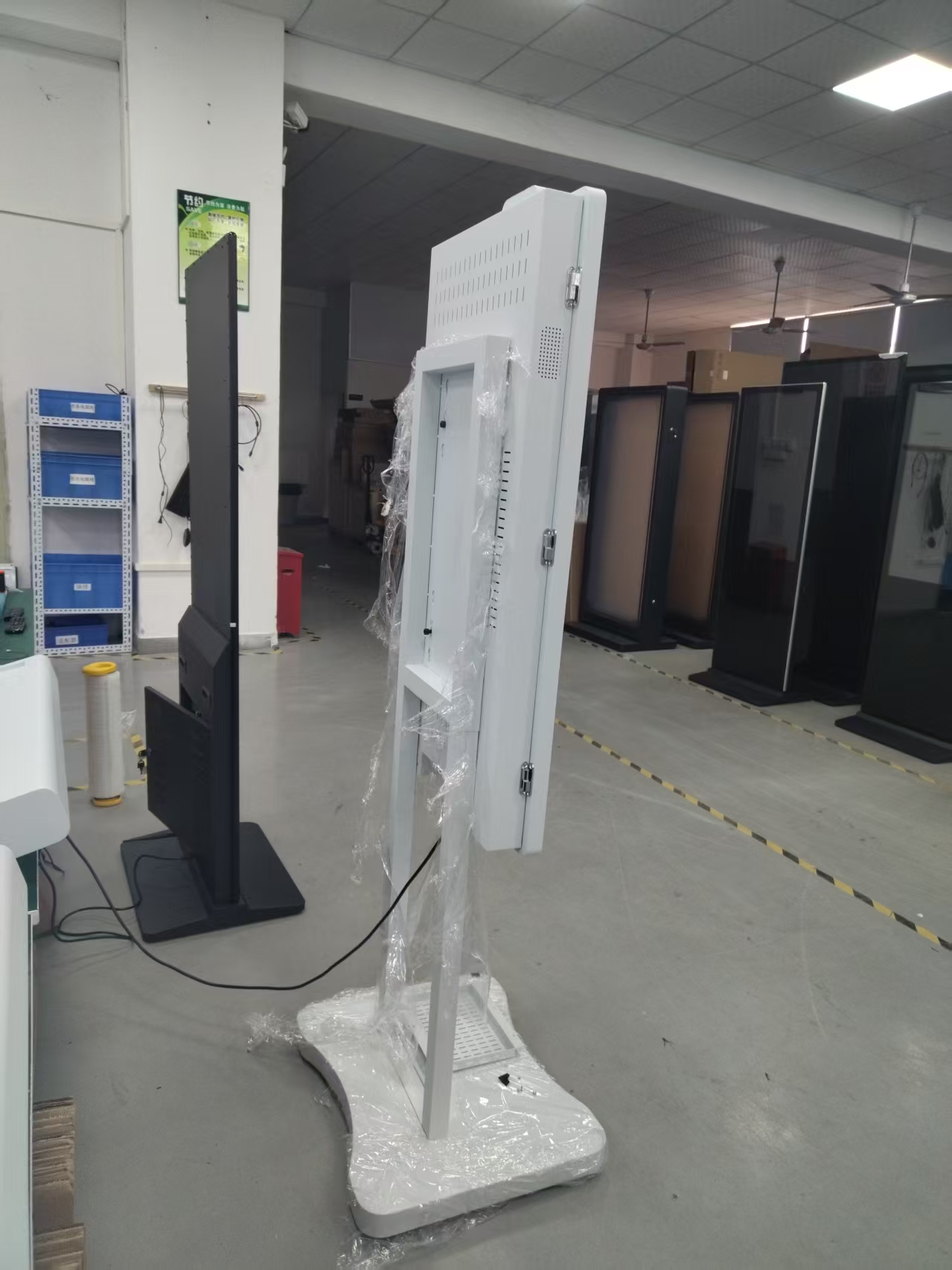
Open the rear panel of the cabinet behind the monitor and check whether any cables are loose; you can unplug them all and reinsert them firmly. If that doesn’t work, uninstall the touch screen driver, reinstall it, and calibrate again.
Practical Conclusion
Identify common ordering kiosk problems involving touch response, printing, payment, networking and software, with practical first-response checks. The final configuration should be verified against the real menu, transaction flow, installation space and support plan before deployment.
Deployment and Operating Checks
Planning for ordering kiosk problems should begin with the actual service flow rather than a generic demonstration setup. Before launch, test the workflow associated with ordering kiosk problems during realistic peak demand and confirm how staff will assist users. Documentation for ordering kiosk problems should cover cleaning, updates, network recovery and peripheral checks. A deployment involving ordering kiosk problems should pass consistent information to payment and back-office systems.
Explore related hardware configurations in the self-service kiosk product range.
Deploying a Self-Service Solution?
To elevate customer experience and streamline ordering or ticketing workflows, explore our AI Self Service Terminal with Large Touchscreen or the versatile Self Service Kiosk for Cinema & Ticketing. For custom hardware integrations, discover our complete line of Custom Self-Service Kiosks or consult our engineering team for sample evaluation.