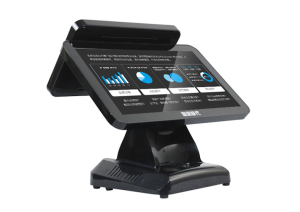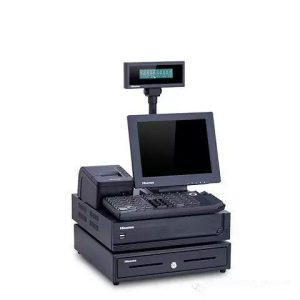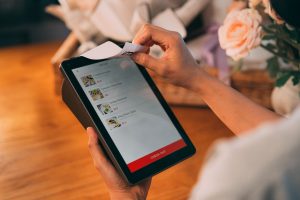
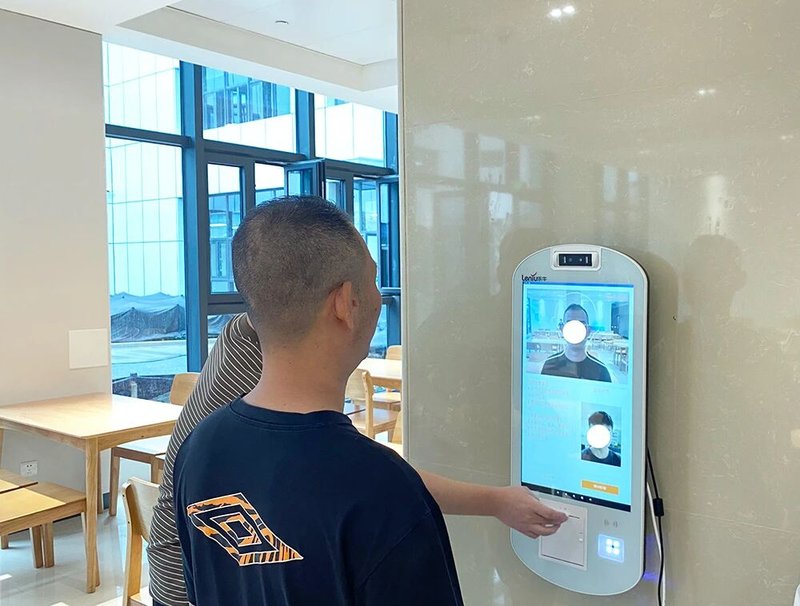
Deploying a high-performance Food Service Touchscreen Kiosk Servicing provides commercial dining and retail venues with an advanced automated workflow. Touchscreen self-ordering kiosks are widely deployed in full-service restaurants, quick-service restaurants (QSRs), canteens, and food courts. They display dynamic digital menus, facilitate dish customization, process order submissions, and interface with POS payment systems to complete the ordering lifecycle. Subject to continuous commercial duty cycles, touchscreens accumulate surface grease, fingerprint smudges, and food residues, while touch sensors, interface cables, and internal electronics may experience wear from demanding operational conditions or improper upkeep.
Standardizing routine sanitation, scheduled preventive maintenance, and structured troubleshooting protocols sustains kiosk uptime and minimizes costly operational interruptions. Maintenance practices should be tailored to the kiosk’s mechanical architecture, touchscreen technology, and OEM maintenance guidelines.
1. Routine Cleaning of Touchscreen Surfaces with a Food Service Touchscreen Kiosk Servicing
The interactive touchscreen is the most heavily used component of a self-ordering kiosk and the primary focus of daily sanitation. In commercial dining spaces, ambient grease vapor, fingerprint oil, and liquid splatters degrade optical clarity and touch accuracy.
Before cleaning, safely power down the display or host terminal per manufacturer instructions, and verify that the cleaning method is approved for that specific panel. Wipe the surface gently using a soft, lint-free microfiber cloth. For persistent smudges, use OEM-approved screen cleaning agents, and never spray liquids directly onto the glass, bezel edges, or interface crevices.
Avoid abrasive wiping rags, scouring pads, sharp tools, or corrosive chemical cleaners (such as harsh acids or ammoniated products), which can scratch optical glass or strip anti-glare, anti-fingerprint coatings. Never operate the kiosk while the display surface remains damp.
For projected capacitive (PCAP) touchscreens, keeping the glass clean is critical to prevent conductive liquid droplets or oil films from causing false touch triggers. For screens with specialized surface treatments or IP-rated waterproof bezels, strictly adhere to manufacturer cleaning protocols.
2. Checking Touch Functionality and Responsiveness
When a kiosk experiences unresponsive touch behavior, inaccurate coordinate registration (touch drift), or localized dead zones, inspect the screen surface first for foreign contaminants, water droplets, or grease residue that could interfere with touch sensing.
After wiping the screen, access the kiosk system diagnostic menu or touch test utility to verify responsiveness across the entire active area. If only specific zones fail to respond, determine whether the failure originates from the touch sensor panel, touch controller IC, internal ribbon cabling, or driver settings.
If the entire display fails to register touch input, verify that the host computer is functioning normally, then inspect the USB/I2C touch controller cable, motherboard headers, and device manager status. For systems requiring dedicated touch drivers, verify that calibration profiles and service processes are active.
Do not modify touch calibration or controller firmware without understanding the touch sensing architecture. If using infrared (IR) touch frames, inspect the perimeter bezel to ensure the optical sensors and reflective gutters are not blocked by accumulated grease, food crumbs, or foreign objects.
3. Troubleshooting Display Anomalies and Black Screen Issues
Display issues may manifest as total black screens, backlight flickering, blurry text, abnormal color banding, or frozen content. When these symptoms appear, systematically isolate the root cause among the display panel, power supply, video cabling, and software application.
If the screen is entirely blank, verify the AC power input, DC power supply adapter, and host system power state. If the host PC has booted normally (status LEDs lit, cooling fans spinning) but the display remains blank, check the HDMI, DP, or LVDS/eDP video cables, converter boards, and LCD display inverter/driver boards.
If the screen displays the application UI but dish photography, menu items, or pricing fail to update, the issue typically stems from kiosk client software, network communication timeouts, or cloud CMS database synchronization rather than display hardware failure.
For displays exhibiting continuous flickering, horizontal/vertical lines, or intermittent blackouts, remove the kiosk from service for technical inspection. Any repairs involving internal power supply units, LCD inverter boards, or mainboard electronics should be handled by certified technicians.
4. Maintaining Clean Equipment Ports and Internal Environments
Self-ordering kiosks house AC/DC power ports, RJ45 Ethernet jacks, USB ports, and internal wiring harnesses connecting integrated peripherals. Over time, airborne dust, kitchen grease, and humidity can degrade physical connector contacts.
During scheduled maintenance, inspect external and internal cable connections for loose seating, oxidation, or mechanical cable pinching, ensuring robust power and LAN connections. Always disconnect power prior to cleaning I/O ports, and avoid cleaning connectors with liquids.
Internal electronics require unobstructed airflow for thermal dissipation. Many kiosks house integrated industrial PCs, display driver boards, and power supplies. When air vents become clogged with grease and dust, internal temperatures rise, causing system throttling, software crashes, or spontaneous reboots.
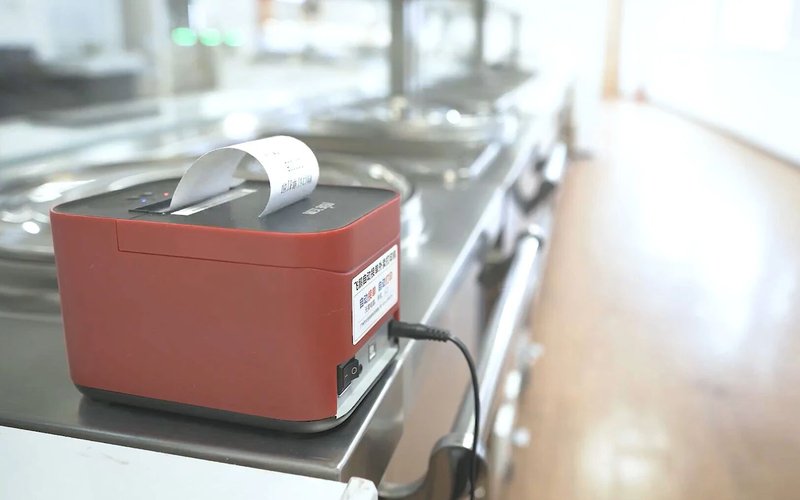
Periodically inspect thermal intake and exhaust vents, removing dust accumulations per OEM guidelines. Do not disassemble sealed enclosures or alter internal fan configurations without authorization, as this may compromise factory ingress protection.
5. Water and Grease Protection in Foodservice Environments
Dining and kitchen spaces present far harsher environmental conditions than standard retail or office settings. Kiosks operate amidst cooking vapors, high ambient humidity, beverage splashes, and continuous human contact; physical placement and ingress protection are paramount.
Install self-ordering kiosks away from dishwashing stations, high-pressure beverage dispensers, high-temperature cooking equipment, and heavy kitchen exhaust hoods. When mopping floors or sanitizing dining counters, prevent cleaning liquids from splashing onto kiosk bases, chassis seams, or ventilation openings.
Ingress protection varies across kiosk models. Never assume a kiosk is waterproof or oil-resistant based solely on its sleek exterior. If a kiosk must be installed near open kitchens, outdoor patios, or semi-exposed areas, verify the hardware’s verified IP rating (such as IP65 front panel protection) before deployment.
6. Periodic Inspection of Ordering Software and Operating System
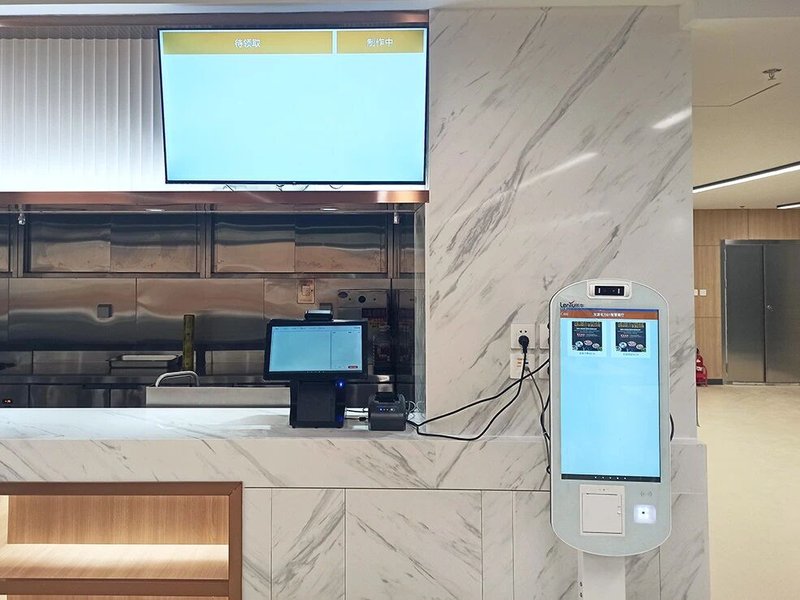
A touchscreen self-ordering kiosk operates as an integrated IoT node communicating with menu databases, kitchen display systems (KDS), payment gateways, and cloud ERP servers. System glitches do not always signify touch hardware defects.
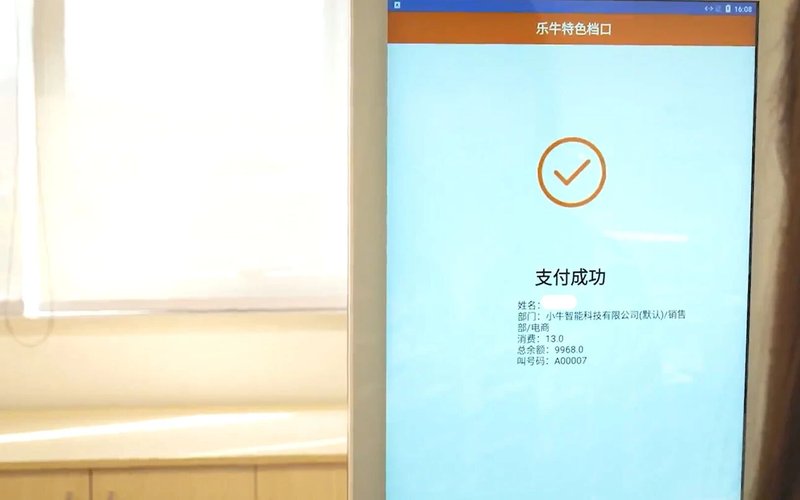
If touch navigation works smoothly but orders fail to submit, inspect local network latency, cloud API endpoints, and payment gateway communication. If menu prices or inventory counts fail to refresh, verify background data sync services.
System administration should include scheduled operating system patches, application version updates, configuration backups, and security audits. Before rolling out new software builds, conduct regression testing on staging hardware to confirm compatibility with peripheral drivers and avoid disrupting live service during operational meal rushes.
For multi-store restaurant chains, maintaining centralized maintenance and incident logs is essential. Tracking incident symptoms, timestamps, resolution steps, and component replacements helps technical teams identify recurring fleet issues quickly.
7. Systematic Troubleshooting Methodology for Common Faults
When hardware or software faults arise, record the exact symptoms and troubleshoot systematically from external variables to internal hardware:
Touch Lag / Inaccuracy: Clean the glass surface first, check for moisture or physical obstructions, and run touch diagnostic tests across coordinate grids.
Terminal Fails to Power On: Inspect AC wall power, power switches, and power adapter status LEDs; if the host boots without video output, inspect display signal cabling and backlight power.
Touch and Display Operate Normally but Orders Fail: Isolate the kiosk application, local Wi-Fi/Ethernet connectivity, payment terminal handshakes, and cloud backend servers.
Repeated Reboots, Burning Smells, Overheating, or Liquid Ingress: Immediately power down the terminal and disconnect the main power plug. Have certified hardware technicians inspect internal power supplies, motherboards, and wire harnesses. Never dismantle energized electronics or swap circuit boards without proper ESD protection and technical qualification.
8. How to Prevent Maintenance Issues on Self-Ordering Kiosks
Beyond daily upkeep and troubleshooting, upfront hardware selection and deployment engineering play a decisive role in long-term reliability.
Restaurants should select kiosk models engineered for their specific transaction volumes, physical layout, and order complexity. Touchscreens must deliver rugged durability for high-frequency tapping, chassis enclosures should allow seamless cleaning, and internal layouts must provide clean thermal channels and easy serviceability.
Following installation, establish standardized cleaning checklists, operator troubleshooting guidelines, and technical escalation channels. High-volume dining establishments should institute scheduled quarterly preventative inspections rather than reacting only after hardware breaks down.
For fleet deployments, secure stable spare parts availability, modular component designs, OS driver stability, and vendor SLA support to ensure self-ordering kiosks consistently drive revenue and guest satisfaction.
Frequently Asked Questions (FAQ)
Q1: Can I use isopropyl alcohol to clean the kiosk touchscreen?
Consult the manufacturer’s user manual first. While dilute isopropyl alcohol (70%) is safe for many commercial tempered glass panels, certain anti-glare, anti-reflective, or oleophobic chemical coatings can be damaged by improper solvents. Never allow liquid to seep into bezel edges or port cutouts.
Q2: What should I do if the screen displays normally but does not respond to touch?
Clean the screen surface thoroughly to remove grease or moisture, and check for frame obstructions. If unresponsiveness persists, test the USB/I2C touch controller cable connection, inspect touch drivers in the OS device manager, and run touch recalibration tools.
Q3: Does a black screen always mean the LCD panel is broken?
No. Black screen conditions frequently result from tripped power supplies, loose video cables (HDMI/DP/LVDS), faulty backlight inverters, or OS sleep states. Confirm host PC power status and verify video signal chains before replacing display panels.
Q4: How frequently should self-ordering kiosks undergo preventative maintenance?
Maintenance frequency depends on operating hours and grease/dust exposure. Touchscreens should be sanitized daily; weekly checks should inspect receipt paper rolls and peripheral hygiene; monthly and quarterly audits should cover cable integrity, cooling vents, and software logs.
Q5: How can restaurant operators choose low-maintenance touchscreen kiosks?
Evaluate commercial display ingress ratings (e.g., IP65 front bezel sealing), industrial PC thermal architecture (fanless or protected ducting), modular peripheral serviceability, OS driver support, and vendor spare parts availability. In summary, integrating a reliable Food Service Touchscreen Kiosk Servicing solution reduces operational labor costs, shortens customer wait times, and maximizes store throughput.
Looking for customized Food Service Touchscreen Kiosk Servicing hardware, commercial touchscreen displays, or OEM/ODM self-service solutions? Feel free to contact the ZXTLCD engineering team for free consultations, product specifications, and tailored volume pricing.
Looking for Reliable Industrial Displays?
If you need an industrial-grade touch monitor for harsh environments, control cabinets, or technical test benches, explore our 15.6-Inch Industrial Touch Screen Display or the compact 10.1-Inch PCAP Touch Monitor designed for precision equipment. You can also browse our full line of Custom Embedded Displays with complete OEM/ODM manufacturing support.